Tampilkan postingan dengan label komputer. Tampilkan semua postingan

Rabu, 25 Mei 2011

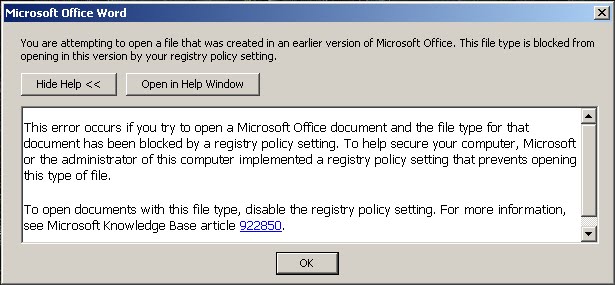
fix open a file that was created in an earlier version of Microsoft Office

Problem:
The issue is the fact that documents saved as word 1.x or 2.x will not open because there is no support for this. A lot of the times when saving a document with Word 97, this will get saved as Word 1.x or 2.x accidentally or purposefully.

Pre-Requisites for Repair:
    1. Basic understanding of the Windows Registry and how adding information to your registry effects your computer.
    2. Windows XP or Vista Operating System.
    3. Microsoft Word 2007.


Warning!!:
If you are not comfortable adding information to the registry then hire a professional.

Notes:
For this repair, there is only 1 version. This repair does not require a step by step tutorial:

    1. Techinese

Beginner Notes:
For this repair, we will be referring to the term "click". Whenever we state the term click, this will always mean a left click. If we want you to right click, we will specify a right click. If we say double click, this means two left clicks.


Techinese Repair:

    1.
    Exit Microsoft Word completely.
    3. Open the registry file attached to this post.
    4. Open your word document again.

This issue should now be resolved.

from : www.scrfix.com


Rabu, 13 April 2011

How to fix "there no active mixer devices available" error message in Windows

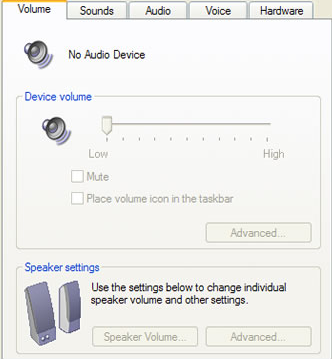
I recently worked on a client’s computer that was giving them the error “no active mixer devices available” whenever they clicked on the volume icon in their task bar. This problem came up out of nowhere and it was almost of if the computer never had sound before! In the Sound and Audio Devices applet in Control Panel, everything was grayed out and there was a message saying “No audio device” under the Volume tab.

greyed out

Upon checking under the Hardware section via the System Properties, we found a couple of yellow exclamation points next to Multimedia Audio Controller. Now this issue would have been easy to fix if the computer had a separate sound card installed and would have simply involved downloading and re-installing the latest drive for the card. Sometimes the driver becomes corrupt and the sound disappears. In this case, just go to Dell, HP, or your manufacture’s web site and download the audio drivers.

However, if your sound card is integrated into your motherboard, you’ll have to re-install the motherboard sound drivers. This is a little trickier because you need to first find the make and model of your motherboard. You can figure out the model of your motherboard in three ways:

1. Open the computer and find the sticker or embedded name of the manufacturer. Be sure it’s not the maker of the chipset, as that will not help.

2. Everest software – a free app that will help you identify your motherboard.

3. Belarc Advisor – Another nifty little app that will give you a crap load of information about your computer including the motherboard.

Once you have the model information, you’ll need to perform a search for the number or try to go to the web site of the maker. Find your driver, install it and restart the computer. You should now have your sound back!

Any questions, post a comment!

[tags]no active mixer devices available, sound gone, no sound, no audio device, i have no sound[/tags]


from:online tips

Share

Twitter Delicious Facebook Digg Stumbleupon Favorites More